Release Note
Automation Rules
Release date:
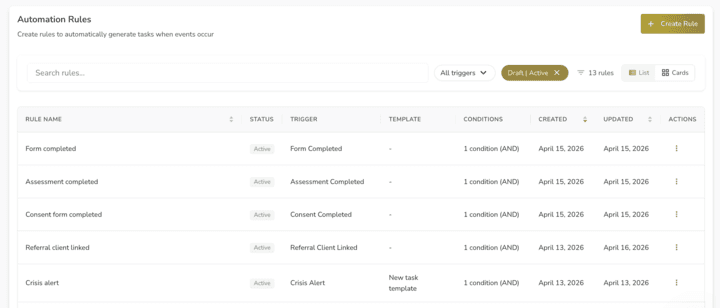
Automation Rules let you set up automatic actions that trigger when specific events happen in your practice, reducing manual follow-up work.
How It Works
A new Automation Rules tab in Task Settings (alongside Categories and Templates) with a 3-step rule builder: Basics (name, trigger, action type), then Conditions (optional filters), then Action Configuration (action-specific settings and rule summary). Each rule has an execution history view showing when it fired, what conditions were evaluated, and whether it succeeded.
Available Triggers
• Appointment Booked, Cancelled, Attended, Client No-Show, Rescheduled
• New Referral, Referral Client Linked
• Assessment Completed, Consent Completed, Form Completed
• Crisis Alert (Case Note Safeguarding)
• Payment Failure
Available Actions
• Set Task: create a task from a template, assigned to a specific clinician or staff role pool
• Send Form, Send Assessment, Send Consent: send a form, clinical assessment, or consent form to the client
• Send Notification: email a staff member or role group
• Generate Invoice: create an invoice using a template (or account defaults)
• Take Payment: charge against a saved card
Conditions
Conditions support AND/OR logic. Rules without conditions fire for all matching events. Example: "When Appointment Booked AND Appointment Type is Initial Consultation, Send Intake Form."
Who Can Do What
• Superusers can create, edit, clone, and manage rules
• Admins can view rules and execution history
Coming Soon
• Scheduled and time-based triggers
• Reminder and escalation sequences
Access
Available on accounts with Task Management enabled.