Release Note
Side View in Tacklit 360
Release date:
Side View lets you display two screens side-by-side within a single browser window, so you can compare information, multitask, and keep context without switching tabs.
Enable Side View
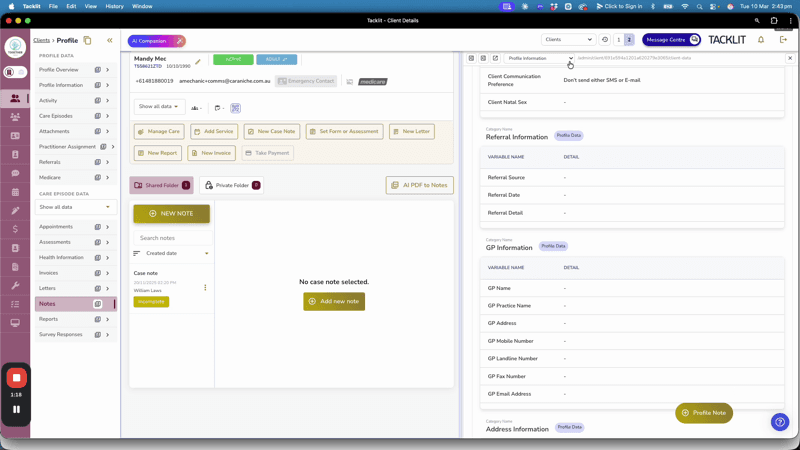
When Side View is enabled on your account, a new toggle appears at the top of the screen with a "1" and a "2". Switch this toggle to activate the side panel. The right-hand panel opens, allowing you to display selected screens in this second view while keeping your main screen on the left.
Work Within a Client Profile Using Two Parallel Views
Navigate to a client profile and review their upcoming appointments on the main left screen. Use the side panel to open referral documents or profile information to review details in parallel with the main view. This setup allows you to perform two related tasks at the same time, moving between the two screens without losing context.
Choose Which Panel to Open Screens In
When you click on sections such as Notes, they open in Screen 1 (the main, left-hand view) by default. If you instead use the "2" panel controls, the selected content opens in the second panel on the right-hand side. This is particularly useful within a client file when you need to compare information side-by-side, such as viewing assessment results in one panel while writing a case note or drafting a letter in the other.
Adjust Panel Size
You can resize the panels, making the side view narrower or wider depending on the task and the information you need to see. This flexibility helps you avoid jumping between multiple browser tabs and keeps everything within a single, consistent view.
Pin Common Tools on the Right
Pin commonly used tools in the right-hand column and continue to navigate anywhere you need on the left.
• Open the calendar on the right to keep scheduling information visible while you work elsewhere
• Add multiple staff calendars to manage several people's schedules
• Maintain a persistent scheduling view while completing other tasks on the left
Jump Buttons to Collapse and Expand
Use the small jump buttons to adjust how much space the side panel takes. Narrow the view when you do not need it, then expand it to interact with the second screen on the right.
Optimised for Larger Screens
Side View is designed for users who frequently multitask or need to compare information in situ, rather than opening multiple Tacklit tabs. It is especially effective on larger monitors where you have more screen real estate for side-by-side views.
Side Panel History
Access the history of what you have viewed in the side panel to quickly navigate back to a recent screen. Close the side panel at any time by toggling back to a single-screen view using the same "1 / 2" toggle at the top.
Good to Know
• Side View is available to superusers, admin users, and practitioner users
• It is designed to streamline day-to-day work by enabling efficient, side-by-side information review
• Works best on larger monitors with more screen real estate