Release Note
Referral and Group Membership Linking
Release date:
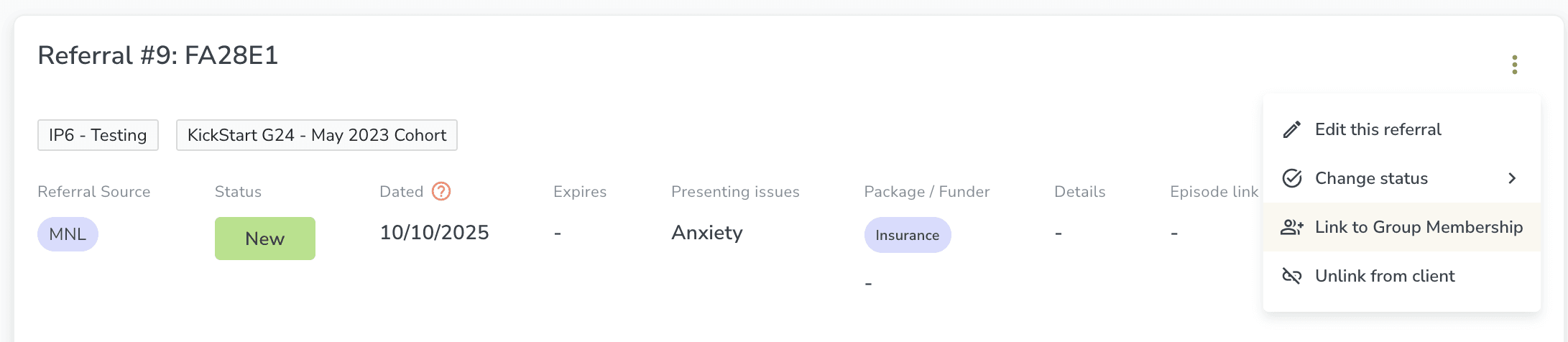
You can now link referrals to group memberships from two places, with referral data flowing through to the group members list, Manage Care, and the Referrals tab.
Where to Create Links
• From a client's Referrals tab: open the action menu on any referral and select "Link to Group Membership", then choose from the client's current groups
• From a client's Groups Information tab or Profile Overview: open the three-dot menu on any group and select "Link Referral", then choose from the client's referrals
See Linked Referral Data on Group Members List
• A new settings (gear) icon next to the Stage filter lets you toggle on referral columns
• When enabled, four columns appear alongside each group member: Referral, Funder, Referral Date, and Referral Status, giving immediate visibility into which members arrived via referral and who the funder is
See Linked Groups in Manage Care
In the Manage Care modal, each referral now shows a "Group Memberships" section listing any linked groups.
See Linked Groups on the Referrals Tab
Linked group names appear as tags on each referral so practitioners can see at a glance which groups a referral is connected to.
Who Can Do What
• Superusers and Admins can create and remove links
• Practitioners can see linked data but cannot modify links
Good to Know
Links are automatically removed when a client is removed from a group, when a group is closed, or when a client record is deleted or merged. Links are preserved when a membership is completed or archived, so the referral-to-group relationship remains visible for audit and funder reporting.